The short answer
TP-Link does not ship an official Tapo desktop app for Windows, so you cannot simply install Tapo on a PC. What you can do is view the camera's RTSP stream: open the Tapo mobile app, create a Camera Account (username and password) under Advanced Settings, then open rtsp://USERNAME:PASSWORD@CAMERA_IP:554/stream1 in a Windows RTSP player such as VLC. That gives you a live view of the high-quality stream on your PC in under five minutes.
rtsp://tapoUser:tapoPass@192.168.1.42:554/stream1   # main stream (higher quality)
rtsp://tapoUser:tapoPass@192.168.1.42:554/stream2   # sub-stream (lower bandwidth)
On a Mac instead?
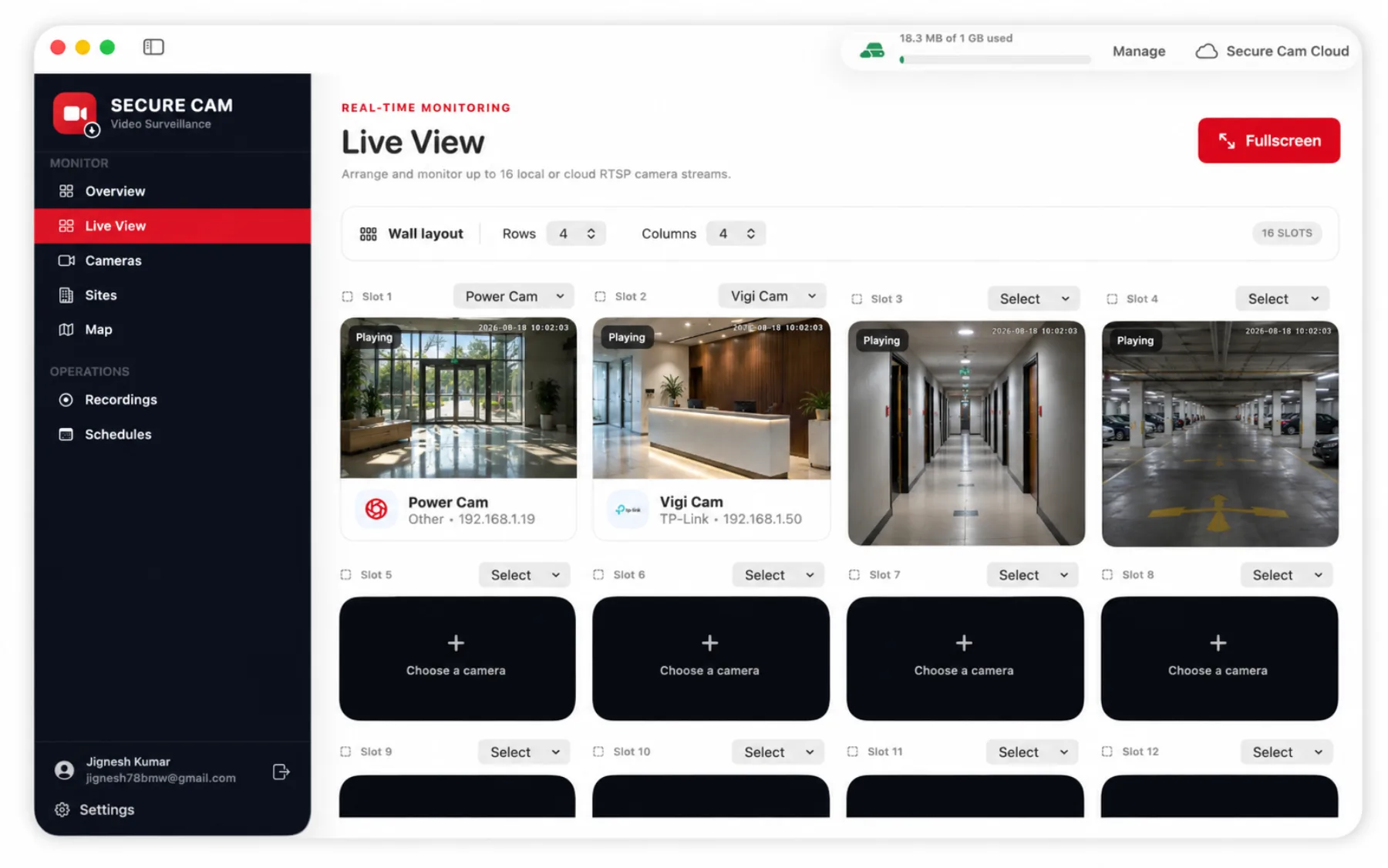
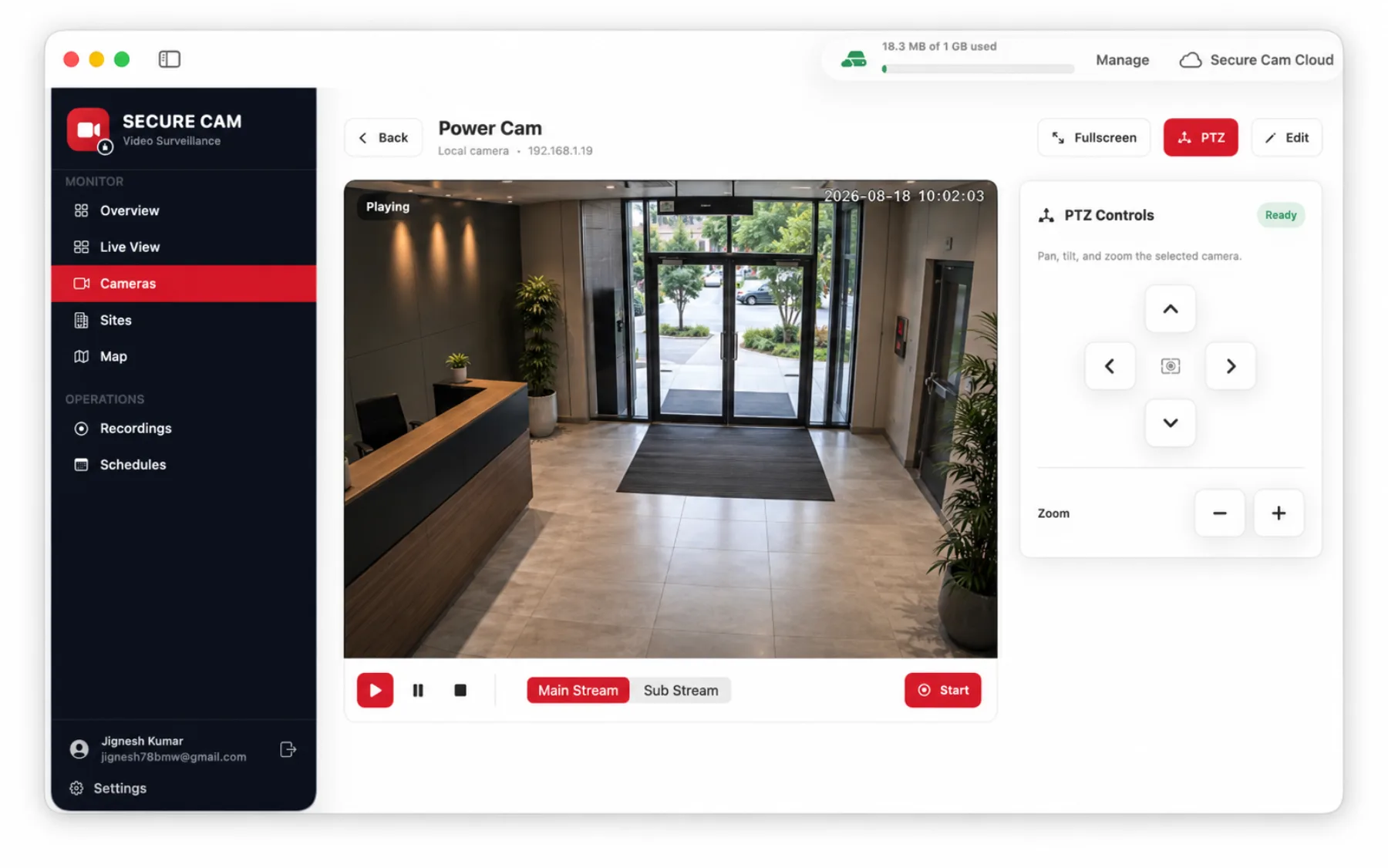
Secure Cam is a native macOS app that discovers ONVIF cameras, adds Tapo RTSP streams manually, and shows up to 16 of them on one live wall — with recording, schedules, and sites. The rest of this guide's credentials and URLs work identically there.
Before you start
- The Tapo camera is set up in the Tapo mobile app and shows as online.
- The camera and the Windows PC are on the same local network (same router, ideally the same subnet).
- The camera firmware is current — RTSP and the Camera Account option were added in later firmware releases.
- You can reach your router's client list or the Tapo app's device info to read the camera's local IP address.
Step 1 — Create a Tapo Camera Account
RTSP on Tapo cameras is protected by a separate local credential called the Camera Account. Your TP-Link cloud login will not work for RTSP. Create it in the mobile app:
- 1Open the Tapo app and tap your camera.
- 2Tap the gear icon (Settings) in the top-right corner.
- 3Go to Advanced Settings, then Camera Account.
- 4Enter a username and password and save. Use simple ASCII characters — symbols like @, : and / break RTSP URLs unless they are percent-encoded.
- 5Note the camera's IP address from Settings, Device Info (or from your router's DHCP client list).
Reserve the IP address
Give the camera a static DHCP lease in your router. If the camera's IP changes after a reboot, every saved RTSP URL stops working.
Step 2 — Open the stream in VLC on Windows
VLC Media Player is the fastest way to confirm the stream works on a PC. Install it from videolan.org, then:
- 1Open VLC and choose Media, then Open Network Stream (Ctrl+N).
- 2Paste rtsp://USERNAME:PASSWORD@CAMERA_IP:554/stream1 using your Camera Account credentials and the camera's IP.
- 3Click Play. The live view should appear within a few seconds.
- 4If the video stutters, switch the path to /stream2 — the sub-stream uses far less bandwidth and CPU.
VLC plays one stream per window, which is fine for a single camera. For several cameras at once you need software that arranges streams in a grid — on Windows that means an NVR-style app; on macOS, Secure Cam gives you a configurable wall out of the box.
Step 3 — Add the Tapo camera to surveillance software
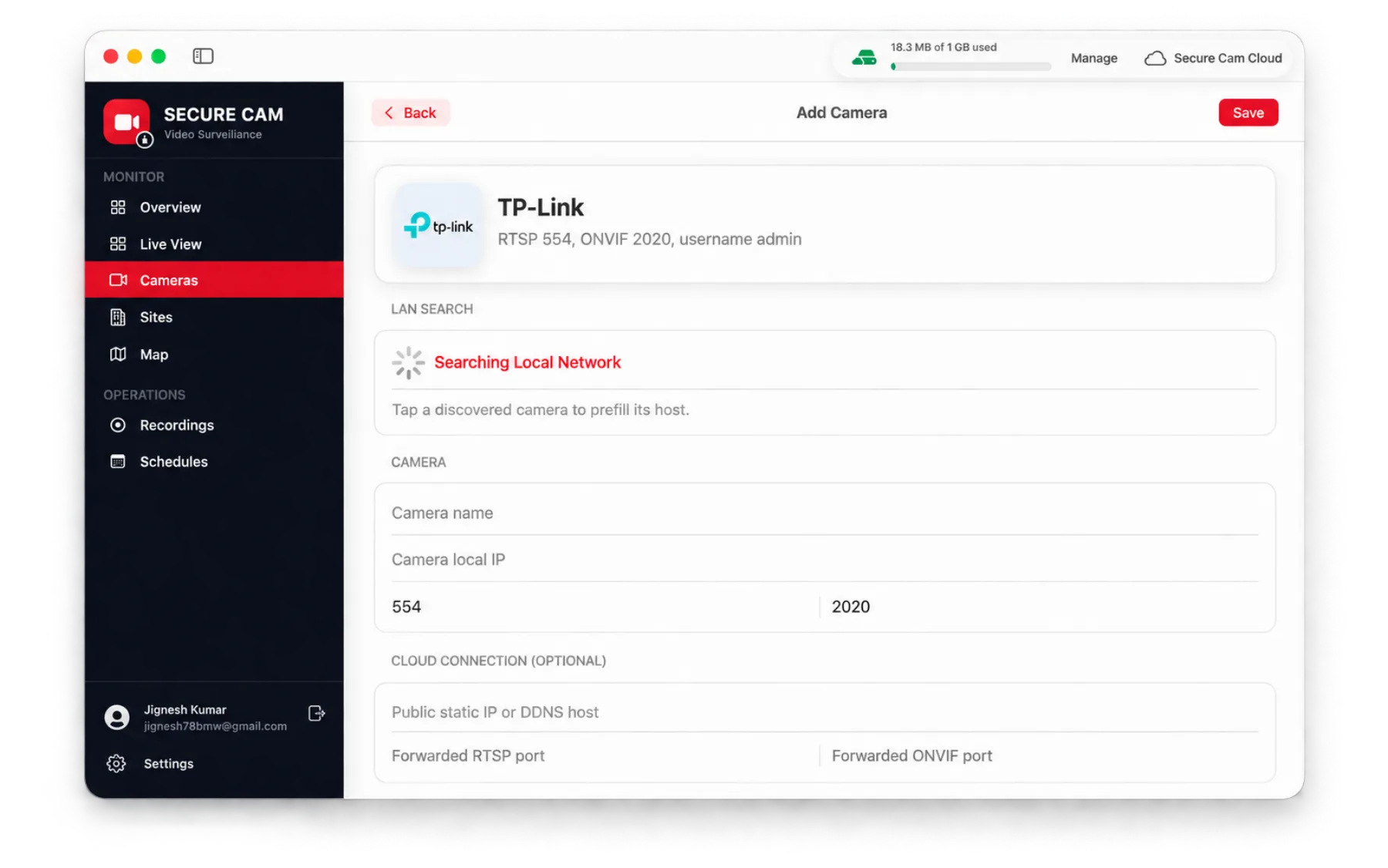
Once VLC proves the stream is reachable, move it into software that can record and monitor continuously. The fields you need are always the same: camera brand or type, host or IP, RTSP port, and the Camera Account credentials.
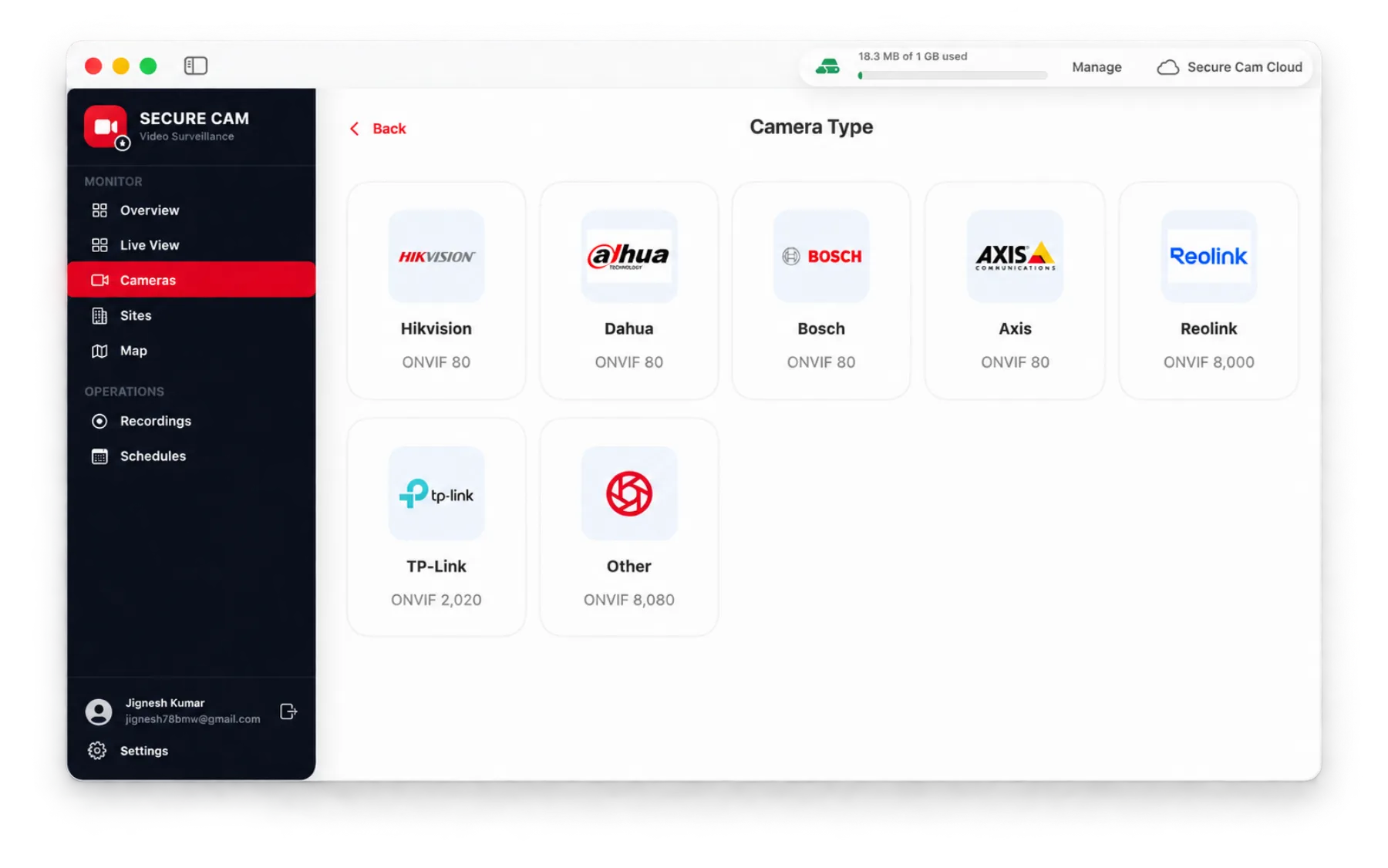
- 1Choose the TP-Link / Tapo camera type so the /stream1 and /stream2 paths are prefilled.
- 2Enter the camera's local IP as the host, and keep RTSP port 554 unless you changed it.
- 3Enter the Camera Account username and password — not your TP-Link cloud account.
- 4Leave the ONVIF port at 2020 for Tapo models that expose ONVIF; skip it for models that do not.
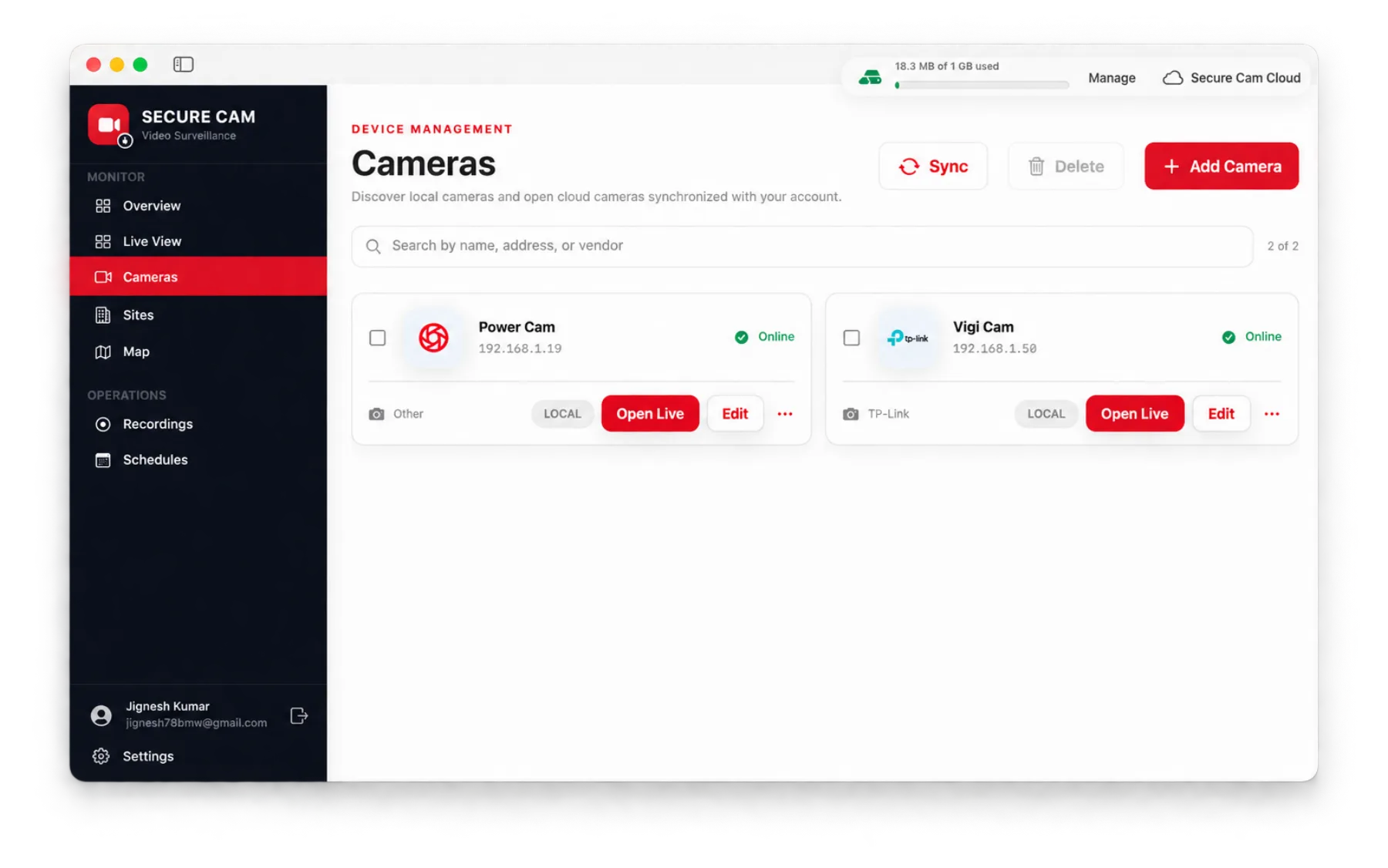
- 5Save and open the camera to confirm the live feed and online status.
Viewing the camera away from home
RTSP is a local-network protocol. From outside your home or office you need one of these, in order of preference:
- VPN back to your network (WireGuard or your router's built-in VPN) — safest, nothing exposed to the internet.
- DDNS plus a forwarded RTSP port — workable, but never expose port 554 with weak credentials.
- Cloud sync — upload completed recording segments to a cloud portal and review them from any browser instead of streaming live through the firewall.
Security note
If you do forward a port, use a long random Camera Account password and a non-standard external port. Exposed RTSP endpoints with default credentials are scanned constantly.
Troubleshooting common Tapo RTSP errors
| Symptom | Likely cause | Fix |
|---|---|---|
| VLC: "Your input can't be opened" | Wrong IP, camera offline, or a different subnet | Ping the camera from Command Prompt. If it fails, check the router client list and confirm the PC is on the same network (not a guest SSID). |
| 401 Unauthorized | Using the TP-Link cloud login instead of the Camera Account | Recreate the Camera Account in Advanced Settings and retype the credentials. |
| Connects, then drops after a few seconds | Main stream bandwidth over Wi-Fi | Switch to /stream2, or move the camera to 5 GHz / Ethernet where possible. |
| Password with @ or : fails | Special characters break RTSP URL parsing | Percent-encode them (@ becomes %40, : becomes %3A) or set an alphanumeric password. |
| Black video with audio only | Player cannot decode the H.264 profile | Update VLC, or force TCP transport in VLC's RTSP settings. |
| Camera not found by ONVIF discovery | Model does not expose ONVIF, or discovery is blocked | Add the camera manually with its IP and RTSP path instead of relying on discovery. |
| Stream works, then stops after a reboot | DHCP handed the camera a new IP | Reserve a static lease for the camera's MAC address in your router. |
Supported Tapo models
Most Tapo cameras released with the Camera Account feature support RTSP over port 554 with the /stream1 and /stream2 paths. Exact behaviour depends on firmware, so always confirm in the Tapo app that Advanced Settings shows a Camera Account option.
| Model | Type | RTSP | PTZ |
|---|---|---|---|
| Tapo C100 | Indoor fixed | Yes | No |
| Tapo C110 | Indoor fixed 3MP | Yes | No |
| Tapo C120 | Indoor/outdoor 2K | Yes | No |
| Tapo C200 | Indoor pan/tilt | Yes | Yes |
| Tapo C210 | Indoor pan/tilt 3MP | Yes | Yes |
| Tapo C211 | Indoor pan/tilt 3MP | Yes | Yes |
| Tapo C220 | Indoor pan/tilt 2K QHD | Yes | Yes |
| Tapo C225 | Indoor pan/tilt 2K QHD | Yes | Yes |
| Tapo C310 | Outdoor bullet 3MP | Yes | No |
| Tapo C320WS | Outdoor 2K QHD | Yes | No |
| Tapo C500 / C510W | Outdoor pan/tilt | Yes | Yes |
| Tapo C520WS / C525WS | Outdoor pan/tilt 2K QHD | Yes | Yes |
Battery-powered models (for example the Tapo C400 and C420 kits) sleep between events and stream through their hub, so a continuous RTSP feed is generally not available on those.
Doing the same on a Mac
If your desktop is a Mac rather than a PC, you can skip the single-window VLC workflow entirely. Secure Cam discovers compatible ONVIF cameras on the local network, accepts manual RTSP cameras like Tapo, and puts them on one configurable live wall with recording, scheduled rules, sites and maps — with no per-camera subscription fee and 1 GB of cloud recording storage included.
Native macOS video surveillance for RTSP and ONVIF cameras.
Get Secure Cam on the Mac App StoreFrequently asked questions
Is there an official Tapo app for Windows? No. TP-Link ships Tapo for iOS and Android only; on a PC you view the camera through its RTSP stream.
Which RTSP port do Tapo cameras use? Port 554, with /stream1 for the main stream and /stream2 for the sub-stream.
Do I need a Tapo Care subscription for RTSP? No. RTSP works locally with a Camera Account and needs no subscription.
Can I record the Tapo stream on my computer? Yes — any software that accepts an RTSP URL can record it. Continuous recording, segment duration and schedules are what separate surveillance software from a plain media player.
More guides